# Recording and Microphone troubleshooting

On the web or Teams:

First make sure you allow the website to use your microphone.
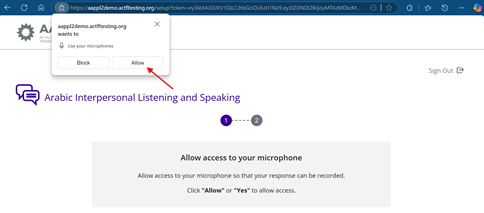
<span style="mso-no-proof: yes;">![A screenshot of a computer

AI-generated content may be incorrect.](https://docs.stgrsd.org/uploads/images/gallery/2025-04/embedded-image-dk20ufk8.png)</span>

If you click “block” by accident, click on the “lock” or lines next to the URL and change the microphone setting to allow.
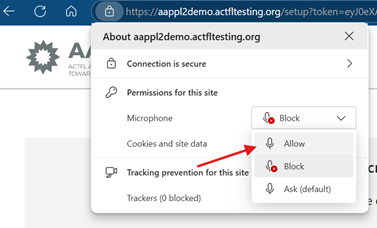
<span style="mso-no-proof: yes;">![A screenshot of a computer](https://docs.stgrsd.org/uploads/images/gallery/2025-04/embedded-image-igcojaa5.png)</span>

If you get the message “The recording volume was low. Please record again.” <span style="mso-no-proof: yes;">![A screenshot of a app error message.](https://docs.stgrsd.org/uploads/images/gallery/2025-04/embedded-image-5n7akec4.png)</span>
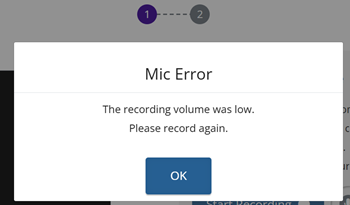
Open your Windows “Settings”

(Click the blue windows button at the bottom of the screen, then the gray gear.) On the left side of the settings box, click “system” then select “sound.”
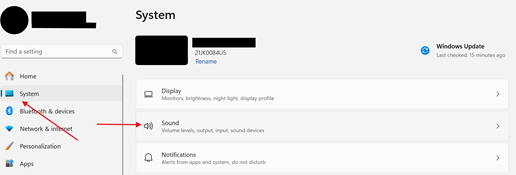
<span style="mso-no-proof: yes;">![A screenshot of a computer system menu.](https://docs.stgrsd.org/uploads/images/gallery/2025-04/embedded-image-r0gxnflc.png)</span>

Scroll down until you see “Input.” Check that the Volume next to the picture of the microphone is up. If the microphone has a slash through it, click on the microphone to remove the slash. Try to record again.
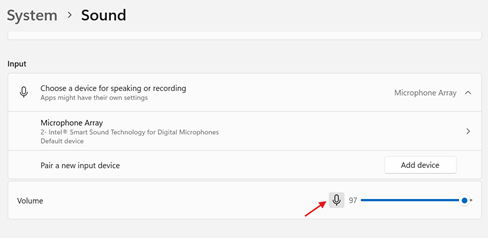
<span style="mso-no-proof: yes;">![A screenshot of a computer

AI-generated content may be incorrect.](https://docs.stgrsd.org/uploads/images/gallery/2025-04/embedded-image-pvexftg9.png)</span>