# Signing In At School
1.) Turn on your computer by pressing the power button. Once your computer boots you should see this screen:
[](http://docs.stgrsd.org/uploads/images/gallery/2022-08/startscreen.png)
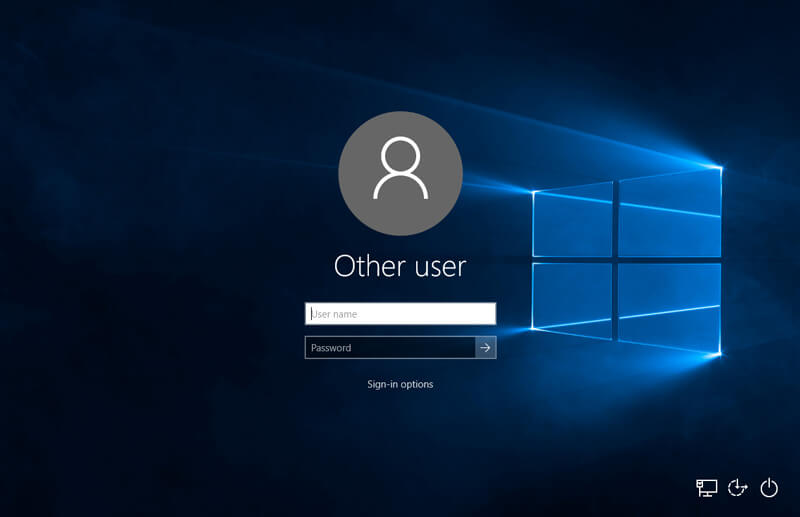
2.) Press any key or click your mouse to bring up the sign in screen:
[](http://docs.stgrsd.org/uploads/images/gallery/2022-08/signinscreen.jpg)
3.) Type in your username and password and press enter.
Your username will be the *first initial* of your *first name* followed by your *entire last name*.
**Example:**
**Student Name:** John Smith
**Username:** jsmith
*Should a student not remember their password, contact their teacher to submit a help ticket at: [https://www.stgrsd.org/staff/ithelpdesk](https://www.stgrsd.org/staff/ithelpdesk) and we'll get in touch!*
*For faculty or staff members that don't remember their password, please click on the help desk link above or contact .*
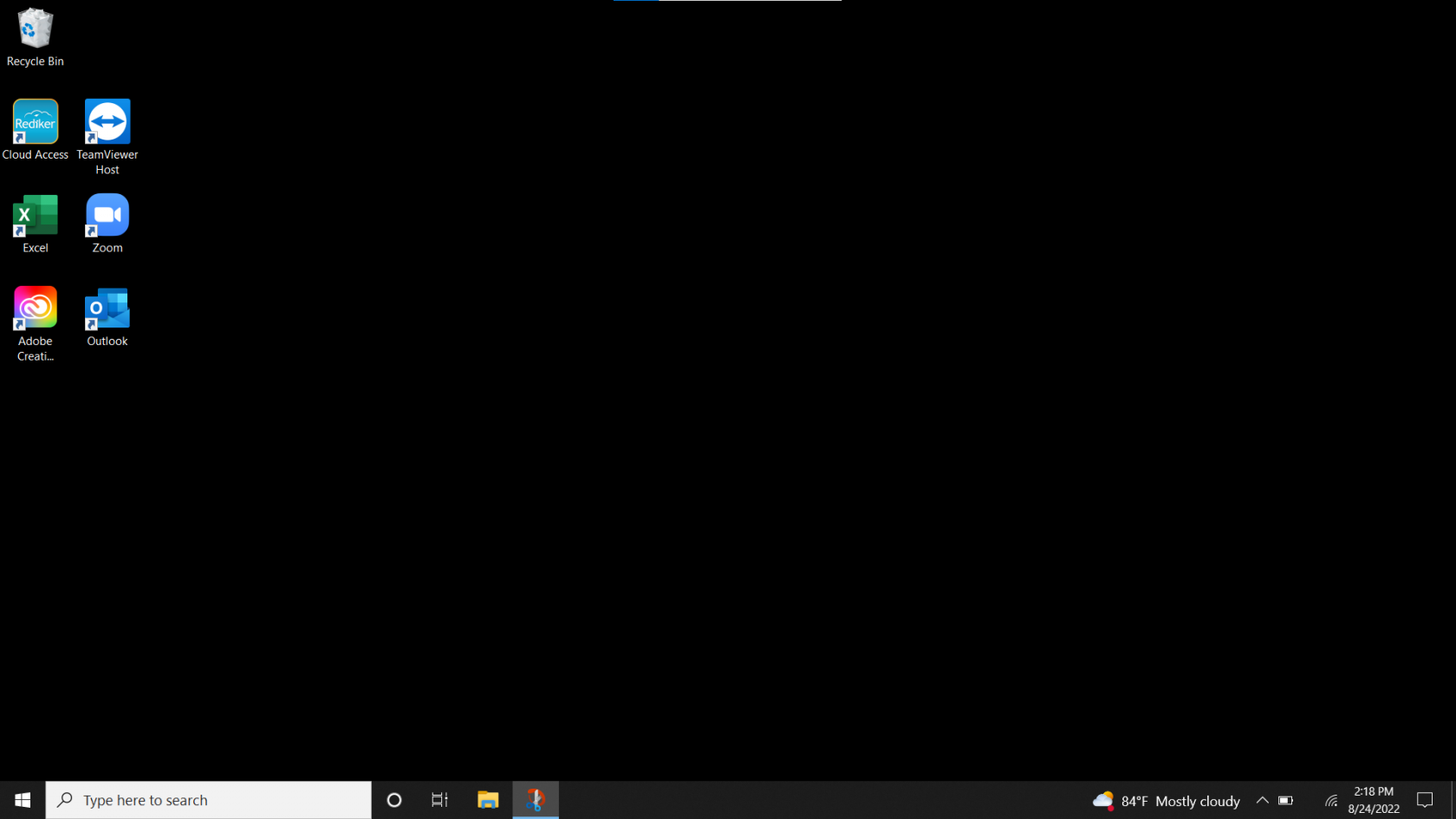
4.) Once you're signed in your desktop should look something like this, you're all set!
[](http://docs.stgrsd.org/uploads/images/gallery/2022-08/blankdesktop.png)