# Signing In At Home (VPN Instructions)

<span style="font-size: 10.5pt; font-family: 'Segoe UI',sans-serif; mso-fareast-font-family: 'Times New Roman'; color: #444444; mso-font-kerning: 0pt; mso-ligatures: none;">1.) Turn on your computer by pressing the power button. </span>

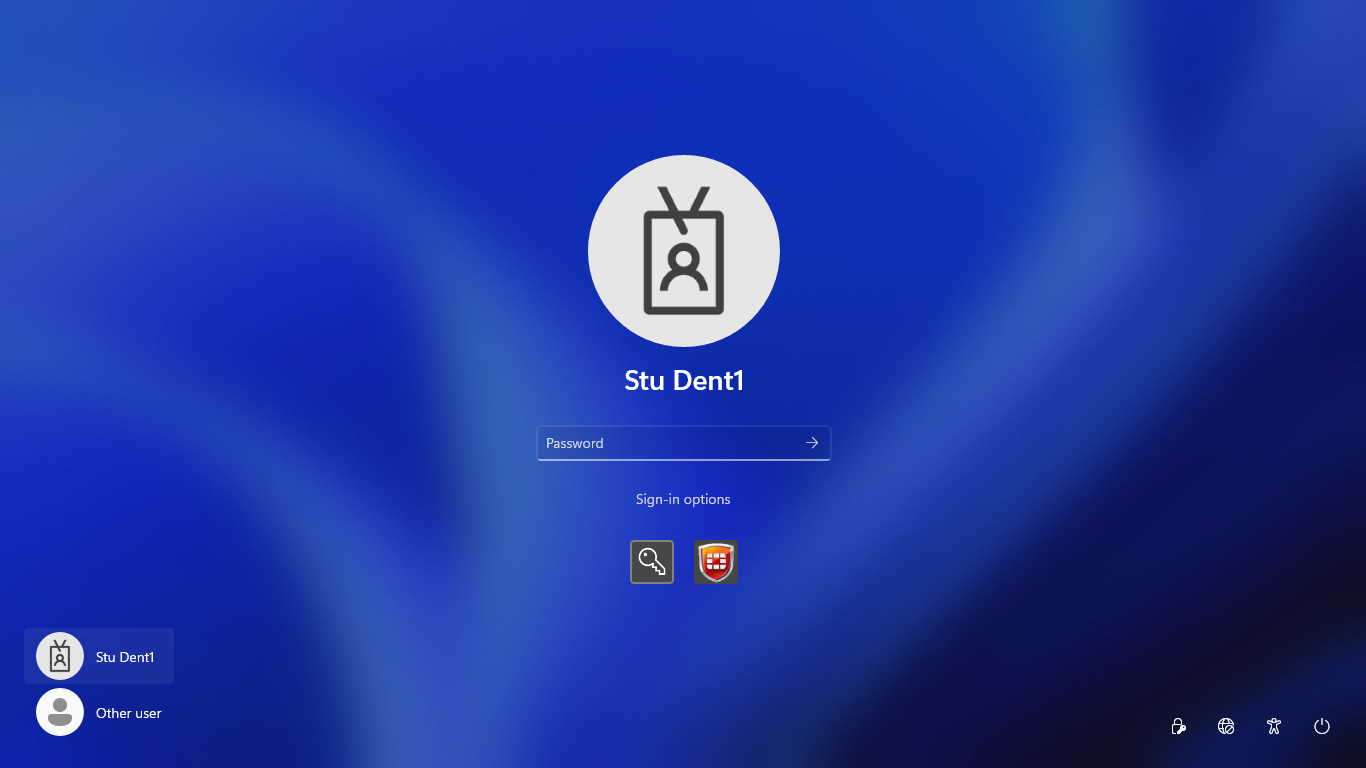
<span style="font-size: 10.5pt; font-family: 'Segoe UI',sans-serif; mso-fareast-font-family: 'Times New Roman'; color: #444444; mso-font-kerning: 0pt; mso-ligatures: none;">2.) <span style="border: none windowtext 1.0pt; mso-border-alt: none windowtext 0in; padding: 0in;">Once your machine is powered on and you are on your lock screen click the Wi-Fi icon on the bottom right and select your home Wi-Fi and enter your home Wi-Fi password.</span></span>

[![Screenshot 2023-12-07 131736.png](https://docs.stgrsd.org/uploads/images/gallery/2023-12/scaled-1680-/screenshot-2023-12-07-131736.png)](https://docs.stgrsd.org/uploads/images/gallery/2023-12/screenshot-2023-12-07-131736.png)

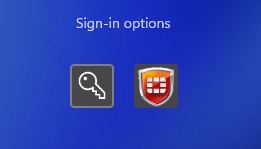
<span style="font-size: 10.5pt; font-family: 'Segoe UI',sans-serif; mso-fareast-font-family: 'Times New Roman'; color: #444444; border: none windowtext 1.0pt; mso-border-alt: none windowtext 0in; padding: 0in; mso-font-kerning: 0pt; mso-ligatures: none;">3.) Click on “sign-in options” then click on the </span>**<span style="font-size: 12.0pt; font-family: 'Segoe UI',sans-serif; mso-fareast-font-family: 'Times New Roman'; color: #444444; border: none windowtext 1.0pt; mso-border-alt: none windowtext 0in; padding: 0in; mso-font-kerning: 0pt; mso-ligatures: none;">red shield icon</span>**<span style="font-size: 12.0pt; font-family: 'Segoe UI',sans-serif; mso-fareast-font-family: 'Times New Roman'; color: #444444; border: none windowtext 1.0pt; mso-border-alt: none windowtext 0in; padding: 0in; mso-font-kerning: 0pt; mso-ligatures: none;"> </span><span style="font-size: 10.5pt; font-family: 'Segoe UI',sans-serif; mso-fareast-font-family: 'Times New Roman'; color: #444444; border: none windowtext 1.0pt; mso-border-alt: none windowtext 0in; padding: 0in; mso-font-kerning: 0pt; mso-ligatures: none;">and type in your username and password.</span>

[![Screenshot 2023-12-07 125921.png](https://docs.stgrsd.org/uploads/images/gallery/2023-12/scaled-1680-/screenshot-2023-12-07-125921.png)](https://docs.stgrsd.org/uploads/images/gallery/2023-12/screenshot-2023-12-07-125921.png)

3.) Type in your username and password and press enter.

Your username will be the *first initial* of your *first name* followed by your *entire last name*.

<span style="text-decoration: underline;">**Example:**</span>

**Student Name:** Stu Dent

**Username:** sdent1

<span style="font-size: 20.0pt; font-family: 'Segoe UI',sans-serif; mso-fareast-font-family: 'Times New Roman'; color: #444444; border: none windowtext 1.0pt; mso-border-alt: none windowtext 0in; padding: 0in; mso-font-kerning: 0pt; mso-ligatures: none;">Adding the FortiClient web extension</span>

<span style="font-size: 10.5pt; font-family: 'Segoe UI',sans-serif; mso-fareast-font-family: 'Times New Roman'; color: #444444; border: none windowtext 1.0pt; mso-border-alt: none windowtext 0in; padding: 0in; mso-font-kerning: 0pt; mso-ligatures: none;"> </span><span style="font-size: 10.5pt; font-family: 'Segoe UI',sans-serif; mso-fareast-font-family: 'Times New Roman'; color: #444444; border: none windowtext 1.0pt; mso-border-alt: none windowtext 0in; padding: 0in; mso-font-kerning: 0pt; mso-ligatures: none;">\*\*\*\*\*It is important that you add the correct Forticlient extension- if you don't see the notifications at the bottom right of the computer, [please go to the next page](https://docs.stgrsd.org/books/sign-in-instructions/page/add-the-correct-forticlient-extension "Add the Correct Forticlient Extension") or use [this URL to access the correct Forticlient extension](https://chrome.google.com/webstore/detail/forticlient-webfilter/mbdegapampkgaclohepfibppdhongjgh).\*\*\*\*\*\*</span>

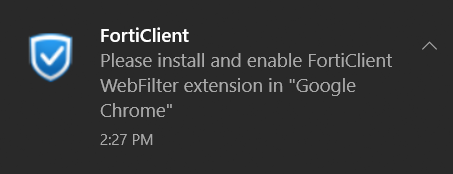
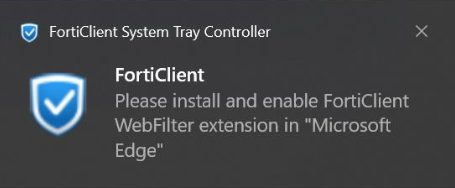
<span style="font-size: 10.5pt; font-family: 'Segoe UI',sans-serif; mso-fareast-font-family: 'Times New Roman'; color: #444444; border: none windowtext 1.0pt; mso-border-alt: none windowtext 0in; padding: 0in; mso-font-kerning: 0pt; mso-ligatures: none;">4.) You will see one of these pop-ups in the bottom right-hand side of your screen. After a moment, click on it:</span>

<span class="EOP SCXW178733301 BCX0" data-ccp-props="{"201341983":0,"335551550":1,"335551620":1,"335559739":160,"335559740":259}">[![WebFilterPopUpCrop.png](http://docs.stgrsd.org/uploads/images/gallery/2022-08/scaled-1680-/webfilterpopupcrop.png)](http://docs.stgrsd.org/uploads/images/gallery/2022-08/webfilterpopupcrop.png)</span>

[![B21476j9.png](https://docs.stgrsd.org/uploads/images/gallery/2023-12/scaled-1680-/b21476j9.png)](https://docs.stgrsd.org/uploads/images/gallery/2023-12/b21476j9.png)

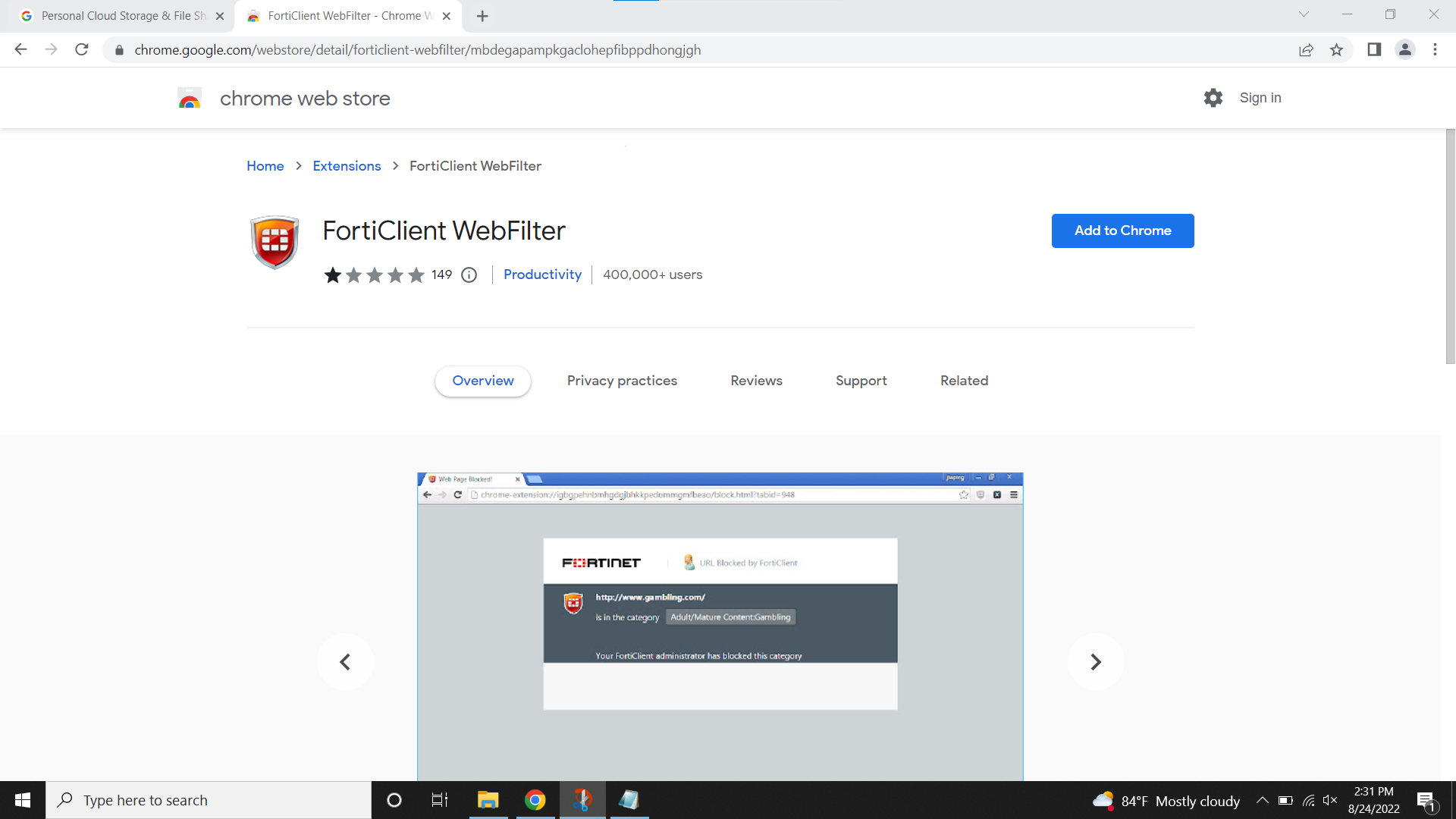
<span class="EOP SCXW178733301 BCX0" data-ccp-props="{"201341983":0,"335551550":1,"335551620":1,"335559739":160,"335559740":259}">6.) The pop-up will bring you to this page, click on "*Add To Chrome"* </span>

<span class="EOP SCXW178733301 BCX0" data-ccp-props="{"201341983":0,"335551550":1,"335551620":1,"335559739":160,"335559740":259}">[![ForticlientWebpage.png](http://docs.stgrsd.org/uploads/images/gallery/2022-08/scaled-1680-/forticlientwebpage.png)](http://docs.stgrsd.org/uploads/images/gallery/2022-08/forticlientwebpage.png)</span>

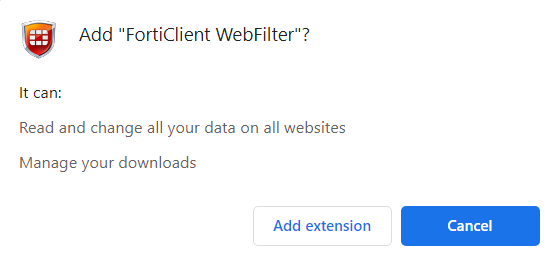
<span class="EOP SCXW178733301 BCX0" data-ccp-props="{"201341983":0,"335551550":1,"335551620":1,"335559739":160,"335559740":259}">7.) When the next pop-up appears click on *"Add Extension"*</span>

<span class="EOP SCXW178733301 BCX0" data-ccp-props="{"201341983":0,"335551550":1,"335551620":1,"335559739":160,"335559740":259}">*[![WebFilterPopAddExtension.png](http://docs.stgrsd.org/uploads/images/gallery/2022-08/scaled-1680-/webfilterpopaddextension.png)](http://docs.stgrsd.org/uploads/images/gallery/2022-08/webfilterpopaddextension.png)*</span>

8.) Once the extension has been added to Chrome you're free to surf the web!

\*\*\*\*\*It is important that you add the correct Forticlient extension- if you don't see the notifications at the bottom right of the computer, [please go to the next page](https://docs.stgrsd.org/books/sign-in-instructions/page/add-the-correct-forticlient-extension "Add the Correct Forticlient Extension") or use [this URL to access the correct Forticlient extension](https://chrome.google.com/webstore/detail/forticlient-webfilter/mbdegapampkgaclohepfibppdhongjgh). \*\*\*\*\*\*