# Sign-In Instructions

# Signing In At School

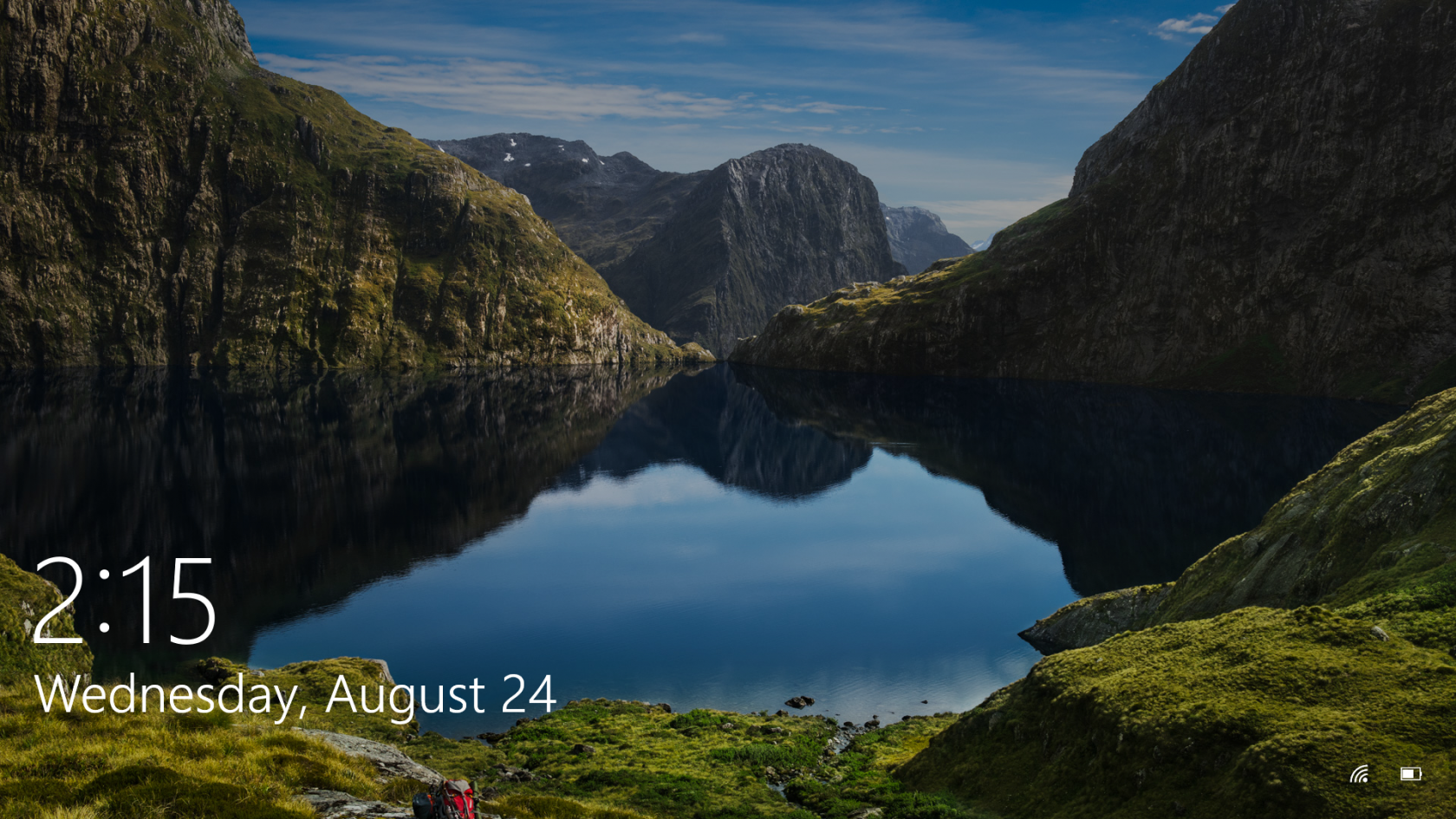
1.) Turn on your computer by pressing the power button. Once your computer boots you should see this screen:

[![StartScreen.png](http://docs.stgrsd.org/uploads/images/gallery/2022-08/scaled-1680-/startscreen.png)](http://docs.stgrsd.org/uploads/images/gallery/2022-08/startscreen.png)
2.) Press any key or click your mouse to bring up the sign in screen:

[![SignInScreen.jpg](http://docs.stgrsd.org/uploads/images/gallery/2022-08/scaled-1680-/signinscreen.jpg)](http://docs.stgrsd.org/uploads/images/gallery/2022-08/signinscreen.jpg)
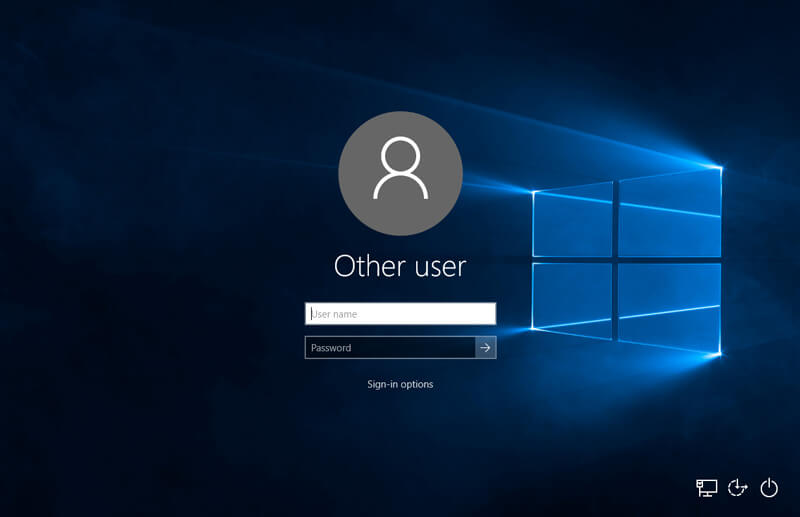
3.) Type in your username and password and press enter.

Your username will be the *first initial* of your *first name* followed by your *entire last name*.

<span style="text-decoration: underline;">**Example:**</span>

**Student Name:** John Smith

**Username:** jsmith

*Should a student not remember their password, contact their teacher to submit a help ticket at: [https://www.stgrsd.org/staff/ithelpdesk](https://www.stgrsd.org/staff/ithelpdesk) and we'll get in touch!*

*For faculty or staff members that don't remember their password, please click on the help desk link above or contact <techsupport@stgrsd.org>.*

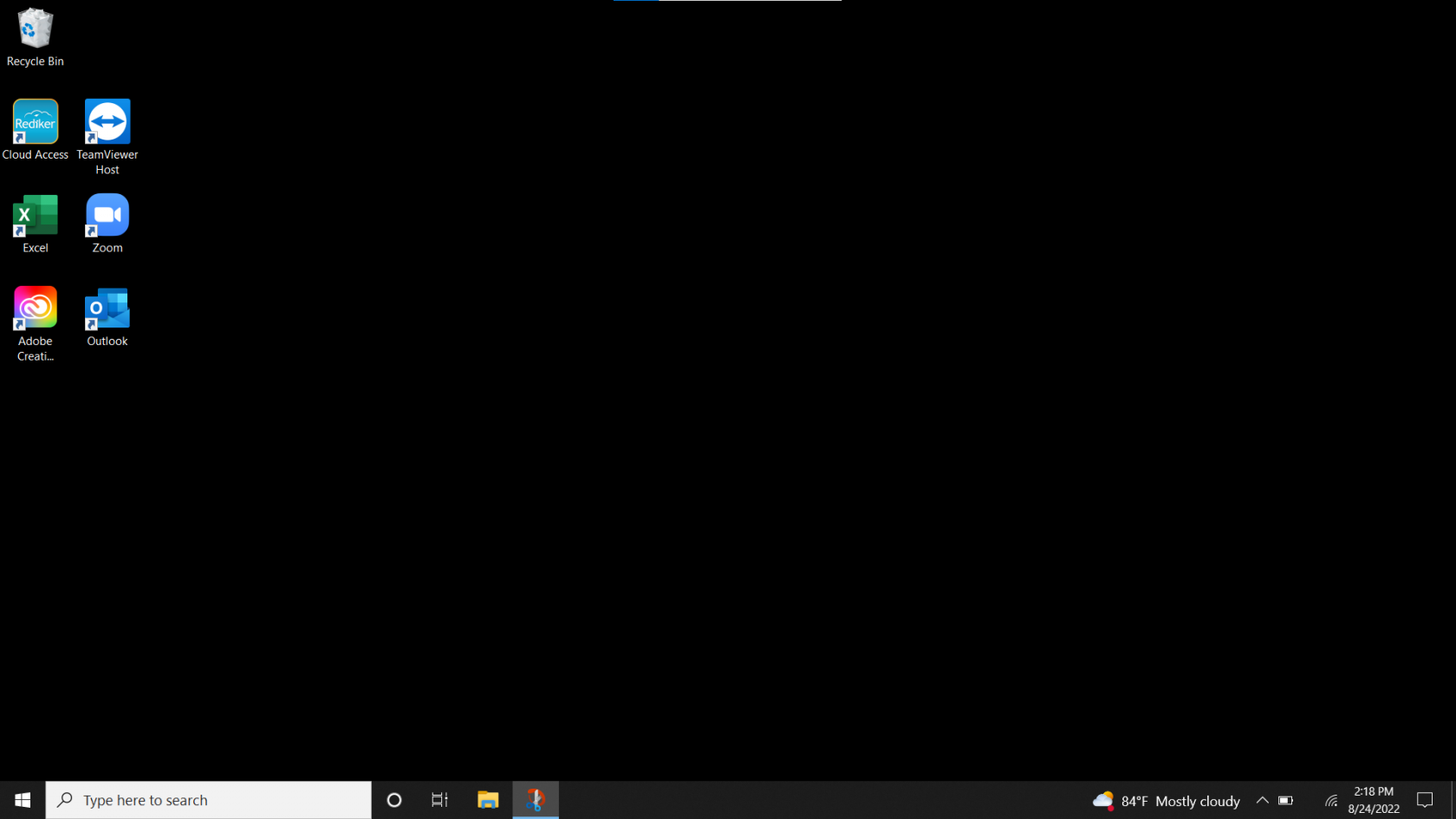
4.) Once you're signed in your desktop should look something like this, you're all set!

[![BlankDesktop.png](http://docs.stgrsd.org/uploads/images/gallery/2022-08/scaled-1680-/blankdesktop.png)](http://docs.stgrsd.org/uploads/images/gallery/2022-08/blankdesktop.png)
# Signing In At Home (VPN Instructions)

<span style="font-size: 10.5pt; font-family: 'Segoe UI',sans-serif; mso-fareast-font-family: 'Times New Roman'; color: #444444; mso-font-kerning: 0pt; mso-ligatures: none;">1.) Turn on your computer by pressing the power button. </span>

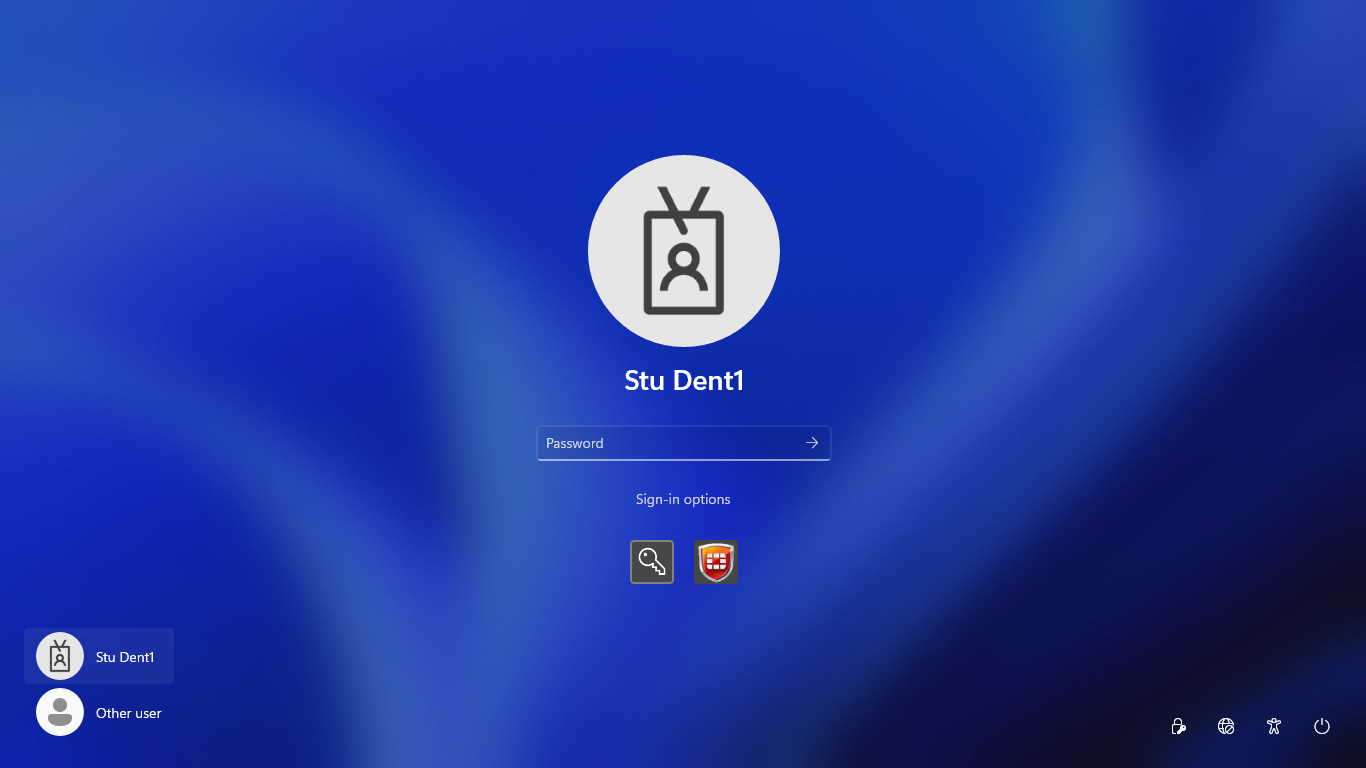
<span style="font-size: 10.5pt; font-family: 'Segoe UI',sans-serif; mso-fareast-font-family: 'Times New Roman'; color: #444444; mso-font-kerning: 0pt; mso-ligatures: none;">2.) <span style="border: none windowtext 1.0pt; mso-border-alt: none windowtext 0in; padding: 0in;">Once your machine is powered on and you are on your lock screen click the Wi-Fi icon on the bottom right and select your home Wi-Fi and enter your home Wi-Fi password.</span></span>

[![Screenshot 2023-12-07 131736.png](https://docs.stgrsd.org/uploads/images/gallery/2023-12/scaled-1680-/screenshot-2023-12-07-131736.png)](https://docs.stgrsd.org/uploads/images/gallery/2023-12/screenshot-2023-12-07-131736.png)

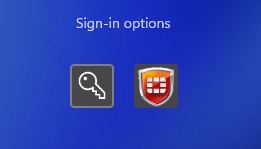
<span style="font-size: 10.5pt; font-family: 'Segoe UI',sans-serif; mso-fareast-font-family: 'Times New Roman'; color: #444444; border: none windowtext 1.0pt; mso-border-alt: none windowtext 0in; padding: 0in; mso-font-kerning: 0pt; mso-ligatures: none;">3.) Click on “sign-in options” then click on the </span>**<span style="font-size: 12.0pt; font-family: 'Segoe UI',sans-serif; mso-fareast-font-family: 'Times New Roman'; color: #444444; border: none windowtext 1.0pt; mso-border-alt: none windowtext 0in; padding: 0in; mso-font-kerning: 0pt; mso-ligatures: none;">red shield icon</span>**<span style="font-size: 12.0pt; font-family: 'Segoe UI',sans-serif; mso-fareast-font-family: 'Times New Roman'; color: #444444; border: none windowtext 1.0pt; mso-border-alt: none windowtext 0in; padding: 0in; mso-font-kerning: 0pt; mso-ligatures: none;"> </span><span style="font-size: 10.5pt; font-family: 'Segoe UI',sans-serif; mso-fareast-font-family: 'Times New Roman'; color: #444444; border: none windowtext 1.0pt; mso-border-alt: none windowtext 0in; padding: 0in; mso-font-kerning: 0pt; mso-ligatures: none;">and type in your username and password.</span>

[![Screenshot 2023-12-07 125921.png](https://docs.stgrsd.org/uploads/images/gallery/2023-12/scaled-1680-/screenshot-2023-12-07-125921.png)](https://docs.stgrsd.org/uploads/images/gallery/2023-12/screenshot-2023-12-07-125921.png)

3.) Type in your username and password and press enter.

Your username will be the *first initial* of your *first name* followed by your *entire last name*.

<span style="text-decoration: underline;">**Example:**</span>

**Student Name:** Stu Dent

**Username:** sdent1

<span style="font-size: 20.0pt; font-family: 'Segoe UI',sans-serif; mso-fareast-font-family: 'Times New Roman'; color: #444444; border: none windowtext 1.0pt; mso-border-alt: none windowtext 0in; padding: 0in; mso-font-kerning: 0pt; mso-ligatures: none;">Adding the FortiClient web extension</span>

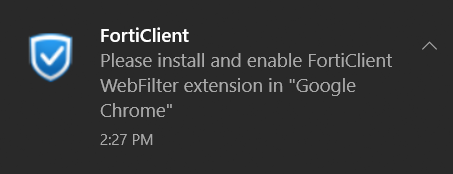
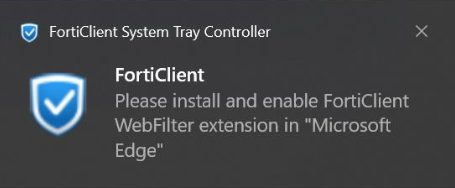
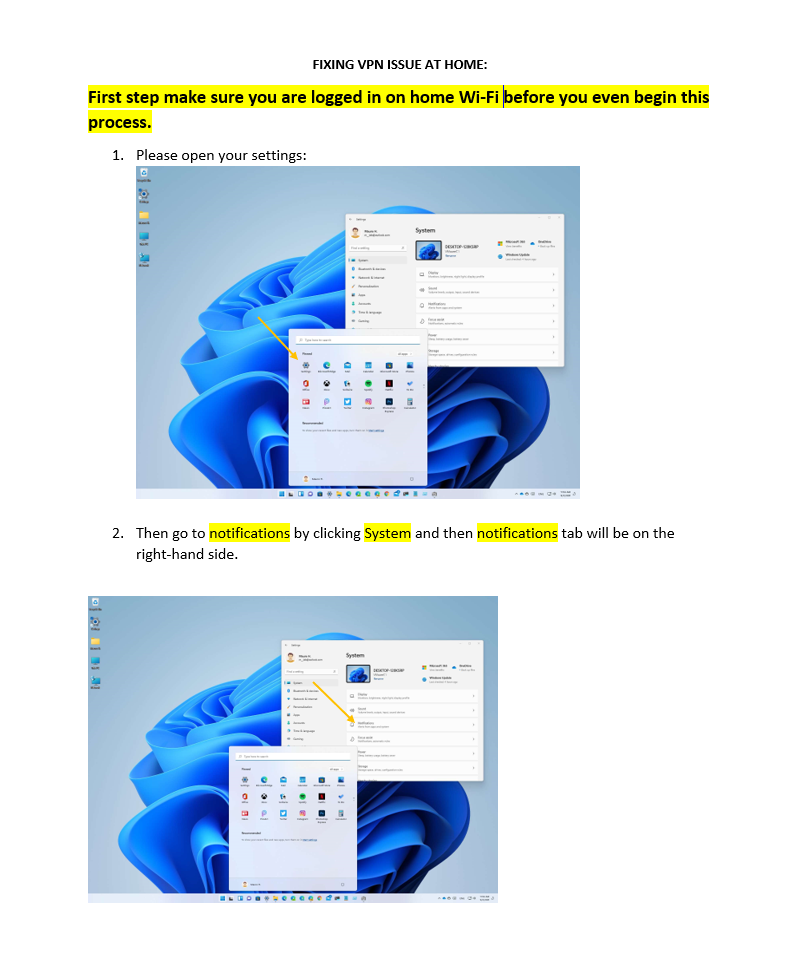
<span style="font-size: 10.5pt; font-family: 'Segoe UI',sans-serif; mso-fareast-font-family: 'Times New Roman'; color: #444444; border: none windowtext 1.0pt; mso-border-alt: none windowtext 0in; padding: 0in; mso-font-kerning: 0pt; mso-ligatures: none;"> </span><span style="font-size: 10.5pt; font-family: 'Segoe UI',sans-serif; mso-fareast-font-family: 'Times New Roman'; color: #444444; border: none windowtext 1.0pt; mso-border-alt: none windowtext 0in; padding: 0in; mso-font-kerning: 0pt; mso-ligatures: none;">\*\*\*\*\*It is important that you add the correct Forticlient extension- if you don't see the notifications at the bottom right of the computer, [please go to the next page](https://docs.stgrsd.org/books/sign-in-instructions/page/add-the-correct-forticlient-extension "Add the Correct Forticlient Extension") or use [this URL to access the correct Forticlient extension](https://chrome.google.com/webstore/detail/forticlient-webfilter/mbdegapampkgaclohepfibppdhongjgh).\*\*\*\*\*\*</span>

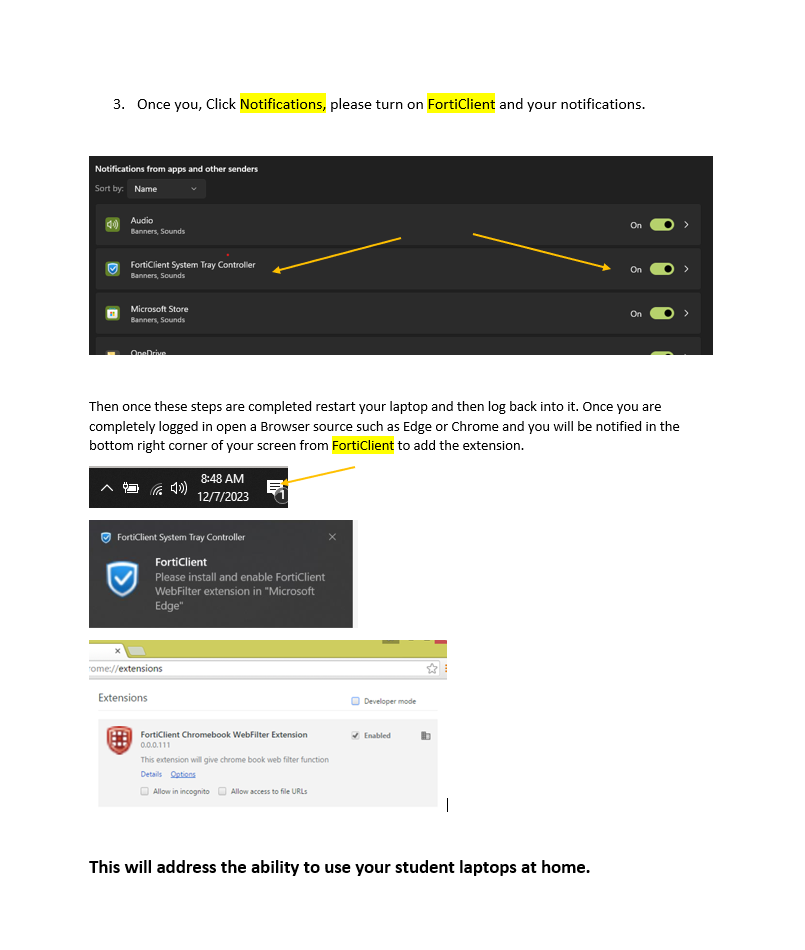
<span style="font-size: 10.5pt; font-family: 'Segoe UI',sans-serif; mso-fareast-font-family: 'Times New Roman'; color: #444444; border: none windowtext 1.0pt; mso-border-alt: none windowtext 0in; padding: 0in; mso-font-kerning: 0pt; mso-ligatures: none;">4.) You will see one of these pop-ups in the bottom right-hand side of your screen. After a moment, click on it:</span>

<span class="EOP SCXW178733301 BCX0" data-ccp-props="{"201341983":0,"335551550":1,"335551620":1,"335559739":160,"335559740":259}">[![WebFilterPopUpCrop.png](http://docs.stgrsd.org/uploads/images/gallery/2022-08/scaled-1680-/webfilterpopupcrop.png)](http://docs.stgrsd.org/uploads/images/gallery/2022-08/webfilterpopupcrop.png)</span>

[![B21476j9.png](https://docs.stgrsd.org/uploads/images/gallery/2023-12/scaled-1680-/b21476j9.png)](https://docs.stgrsd.org/uploads/images/gallery/2023-12/b21476j9.png)

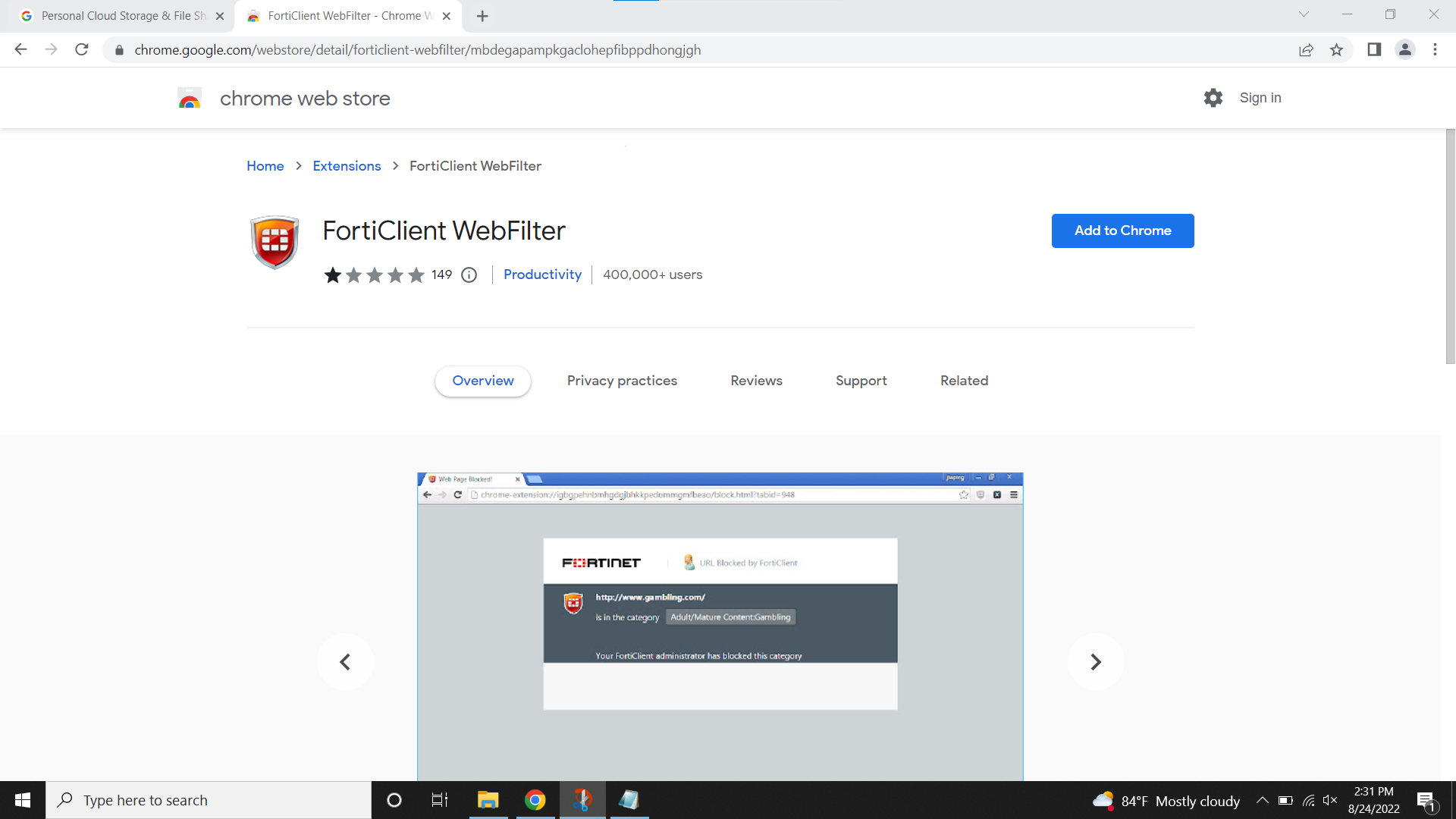
<span class="EOP SCXW178733301 BCX0" data-ccp-props="{"201341983":0,"335551550":1,"335551620":1,"335559739":160,"335559740":259}">6.) The pop-up will bring you to this page, click on "*Add To Chrome"* </span>

<span class="EOP SCXW178733301 BCX0" data-ccp-props="{"201341983":0,"335551550":1,"335551620":1,"335559739":160,"335559740":259}">[![ForticlientWebpage.png](http://docs.stgrsd.org/uploads/images/gallery/2022-08/scaled-1680-/forticlientwebpage.png)](http://docs.stgrsd.org/uploads/images/gallery/2022-08/forticlientwebpage.png)</span>

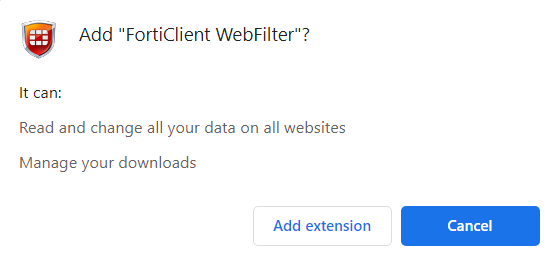
<span class="EOP SCXW178733301 BCX0" data-ccp-props="{"201341983":0,"335551550":1,"335551620":1,"335559739":160,"335559740":259}">7.) When the next pop-up appears click on *"Add Extension"*</span>

<span class="EOP SCXW178733301 BCX0" data-ccp-props="{"201341983":0,"335551550":1,"335551620":1,"335559739":160,"335559740":259}">*[![WebFilterPopAddExtension.png](http://docs.stgrsd.org/uploads/images/gallery/2022-08/scaled-1680-/webfilterpopaddextension.png)](http://docs.stgrsd.org/uploads/images/gallery/2022-08/webfilterpopaddextension.png)*</span>

8.) Once the extension has been added to Chrome you're free to surf the web!

\*\*\*\*\*It is important that you add the correct Forticlient extension- if you don't see the notifications at the bottom right of the computer, [please go to the next page](https://docs.stgrsd.org/books/sign-in-instructions/page/add-the-correct-forticlient-extension "Add the Correct Forticlient Extension") or use [this URL to access the correct Forticlient extension](https://chrome.google.com/webstore/detail/forticlient-webfilter/mbdegapampkgaclohepfibppdhongjgh). \*\*\*\*\*\*

# Microsoft 365 for Students

To sign in to your email (Outlook)/Teams:  
Go to: http://www.office.com and click “Sign In”  
Enter your email. Your email address is the username you use to get on the computer **PLUS**  
**@k12.stgrsd.org**.  
ex. Your name is John Doe. To log on to the school computer you use jdoe plus your password.   
Your email is jdoe@k12.stgrsd.org  
Your email password is the same password you use to get on the school computers.  
Click on “Outlook.” This is your new SRS email!

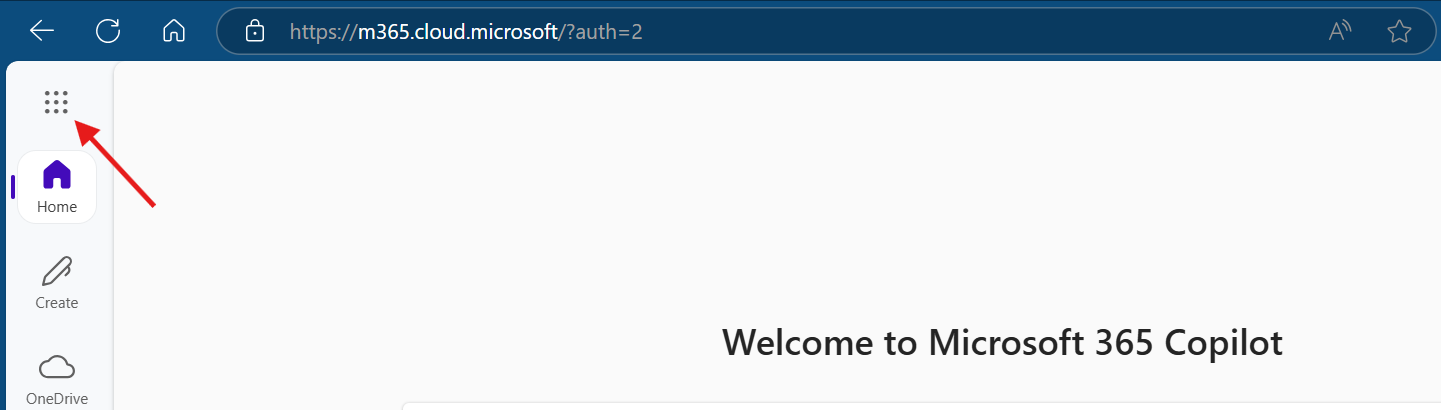
Click on the nine dots in the upper left corner to access all your Microsoft Apps, including Teams.

[![image.png](https://docs.stgrsd.org/uploads/images/gallery/2025-04/scaled-1680-/Avhimage.png)](https://docs.stgrsd.org/uploads/images/gallery/2025-04/Avhimage.png)
# Add the Correct Forticlient Extension

[![image.png](https://docs.stgrsd.org/uploads/images/gallery/2023-12/scaled-1680-/9WHimage.png)](https://docs.stgrsd.org/uploads/images/gallery/2023-12/9WHimage.png)
[![image.png](https://docs.stgrsd.org/uploads/images/gallery/2023-12/scaled-1680-/Stsimage.png)](https://docs.stgrsd.org/uploads/images/gallery/2023-12/Stsimage.png)